Editing Spreadsheets from gvSIG Scripting for reporting

Following up on last week´s topic about Automate-reporting-in-gvsig-using-scripting, we are going to explain how can we make the same but using a spreadsheet file template (ODS).

In the previous post, we explained how to install jOpendocument library and how to download all the needed material for running the script.

For this example we are going to use the file located at C:\gvsig_informes\plantilla_invoice.ods.  There is no need for having any layer loaded in gvSIG.

If we use Linux or load the file in another place of our disk, we only should change the script path which makes reference to the spreadsheet template: pathTemplate. There are two, one input file plantilla_invoice.ods, and another one for the output file that we can save whenever we want.

The following script uses the jOpendocument library to modify the ODS file, assigning to the cells the required values. These values can be extracted from the information of our layers, as we explained in the previous post.

The template is based on the one used in the documentation of jOpendocument. This script is based on the example about modify an existent spreadsheet, but there is more, for example, create a new spreadsheet.

When the script is executed correctly, LibreOffice will be opened with the created file. If is like this case, that the spreadsheet includes formules (additions, multiplications,…) we need to press in LibreOffice Ctrl+Shift+F9 to refresh and update all the spreadsheet calculations. We will see how some cells will change.

The result would be a file similar to:
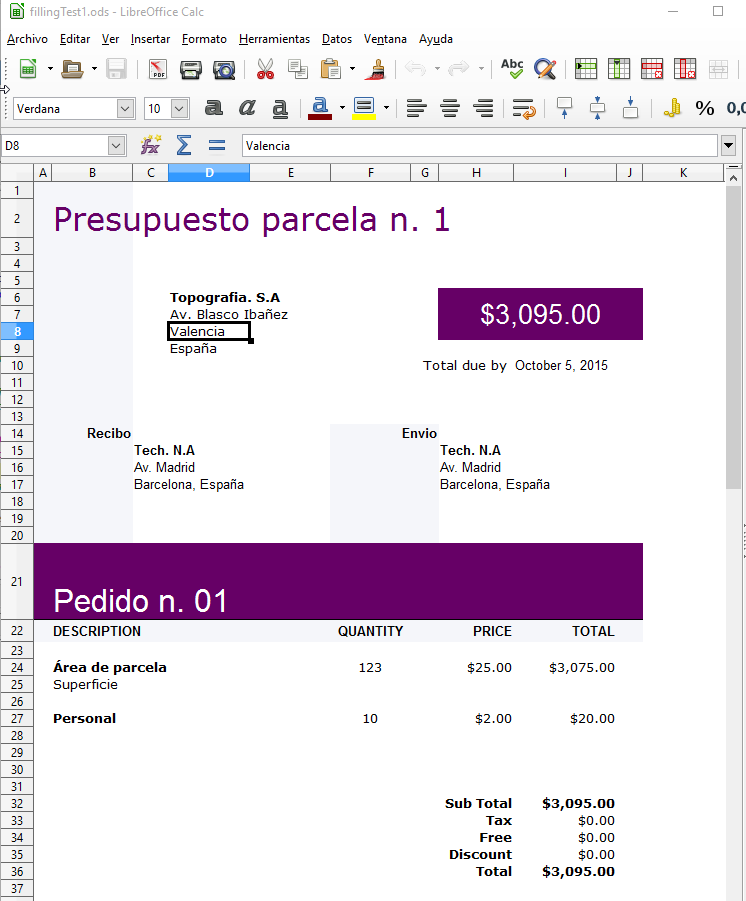
2015-10-05 15_57_38-fillingTest1.ods - LibreOffice Calc

The code is the following, only you need to make sure that the paths are correct:

from gvsig import *

from java.io import File
from java.util import Date

from org.jopendocument.model import OpenDocument
from org.jopendocument.dom.spreadsheet import SpreadSheet
from org.jopendocument.dom import OOUtils

def main(*args):
    #Editing example of ODS files with jOpenDocument
    
    #based on http://www.jopendocument.org/start_spreadsheet_2.html
    #template files http://www.jopendocument.org/downloads.html

    pathTemplate = r"C:/gvsig_informes/plantilla_invoice.ods"
    pathOutput = r"C:/gvsig_informes/resultado/fillingTest1.ods"

    #Access to spreadsheet and sheet number
    file = File(pathTemplate)
    sheet = SpreadSheet.createFromFile(file).getSheet(0)

    #Set actual date in I10 cell
    sheet.getCellAt("I10").setValue(Date())

    #Title
    sheet.getCellAt("B21").setValue("Pedido n. 01")
    
    #Modify the value of the cell 1,1. It would be B2
    sheet.setValueAt("Presupuesto parcela n. 1", 1, 1)

    #Some modifications to the cells
    sheet.getCellAt("F24").setValue(123)
    
    sheet.getCellAt("B27").setValue("Personal")
    sheet.getCellAt("H27").setValue(2)
    sheet.getSpreadSheet().getTableModel("Products").setValueAt(10, 5, 4) #F27

    #Save file
    outputFile = File(pathOutput)
    OOUtils.open(sheet.getSpreadSheet().saveAs(outputFile))

We hope that it would be helpful for reporting and to show the potential of gvSIG Scripting for using external libraries.

Any question about it, you can comment in here or in the lists.

Posted in community, development, english, gvSIG Desktop, gvSIG development, scripting | 1 Comment

Cursos de gvSIG, PostGIS, i3Geo y geoprocesamiento avanzado, en español y portugués

Ya están abiertas las inscripciones para los cursos a distancia de gvSIG-Training, que forman parte de la oferta del Programa de Certificación de la Asociación gvSIG.

A diferencia de las convocatorias anteriores, la modalidad de inscripción pasa a ser de matricula abierta para la mayoría de los cursos, por lo que el alumno podrá matricularse y comenzar el curso cuando lo desee. Los cursos disponibles actualmente son:

Cursos gvSIG general:

  • gvSIG 2.x para usuarios (Idioma: Español). Duración: 10 semanas. Créditos para Certificación Usuario gvSIG: 90. Precio: 195 euros. Profesores Titulares: Mario Carrera, Raúl Casado.

Cursos gvSIG aplicado:

  • gvSIG aplicado a la Gestión de Pavimentos y Vialidad (Idioma: Español). Duración: 4 semanas. Créditos para Certificación Experto gvSIG: 40. Precio: 190 euros. Profesor Titular: Josep Lluís Sala, Profesor Auxiliar: Sergio Muñoz.
  • gvSIG aplicado a la Gestión Municipal (Idioma: Español). Duración: 4 semanas. Créditos para Certificación Experto gvSIG: 30. Precio: 190 euros. Profesor Titular: Josep Lluís Sala, Profesor Auxiliar: Sergio Muñoz.
  • gvSIG Aplicado al Medio Ambiente (Idioma: Español). Duración: 10 semanas. Créditos para Certificación de Usuario gvSIG: 90. Precio: 195 euros. Profesor Titular: Marta Criado Valdés, María José Bravo Comerón.
  • gvSIG Aplicado a Fauna (Idioma: Español). Duración: 7 semanas. Créditos para Certificación de Usuario gvSIG: 90. Precio: 190  euros. Profesor Titular: Marta Criado Valdés, María José Bravo Comerón.
  • gvSIG Aplicado a Espacios Naturales Protegidos (Idioma: Español). Duración: 7 semanas. Créditos para Certificación de Usuario gvSIG: 90. Precio:  190  euros. Profesor Titular: Marta Criado Valdés, María José Bravo Comerón.

Cursos Geoprocesamiento y Análisis Espacial, en español y portugués (Matrícula cerrada, fecha límite de inscripciones y comienzo del curso: 26 octubre 2015):

  • Geoprocesamiento Avanzado sobre gvSIG (Idioma: Español). Duración: 10 semanas. Créditos para Certificación Experto gvSIG: 75. Precio: 295 euros. Profesor Titular: Antonio Ordóñez.
  • Geoprocesamiento Avanzado sobre gvSIG (Idioma: Portugués). Duración: 10 semanas. Créditos para Certificación Experto gvSIG: 75. Precio: 295 euros. Profesores Titulares: Paulo Fachin y Manuel Pulido, Profesores Auxiliares: Artur Gil y Antonio Ordóñez.
  • Análisis del Terreno e Hidrológico (Idioma: Español). Duración: 4 semanas. Créditos para Certificación Experto gvSIG: 30. Precio: 79 euros. Profesor Titular: Antonio Ordóñez.
  • Análise do relevo e hidrológica (Idioma: Portugués). Duración: 4 semanas. Créditos para Certificación Experto gvSIG: 30. Precio: 79 euros. Profesores Titulares: Paulo Fachin y Manuel Pulido, Profesores Auxiliares: Artur Gil y Antonio Ordóñez.
  • Análisis de Visibilidad e iluminación (Idioma: Español). Duración: 3 semanas. Créditos para Certificación Experto gvSIG: 20. Precio: 59 euros. Profesor Titular: Antonio Ordóñez.
  • Análise de visibilidade e Iluminação (Idioma: Portugués). Duración: 3 semanas. Créditos para Certificación Experto gvSIG: 20. Precio: 59 euros. Profesores Titulares: Paulo Fachin y Manuel Pulido, Profesores Auxiliares: Artur Gil y Antonio Ordóñez.
  • Análisis de Perfiles y Secciones transversales (Idioma: Español). Duración: 3 semanas. Créditos para Certificación Experto gvSIG: 20. Precio: 59 euros. Profesor Titular: Antonio Ordóñez.
  • Análise de perfis e seções transversais (Idioma: Portugués). Duración: 3 semanas. Créditos para Certificación Experto gvSIG: 20. Precio: 59 euros. Profesores Titulares: Paulo Fachin y Manuel Pulido, Profesores Auxiliares: Artur Gil y Antonio Ordóñez.
  • Análisis de Costes y Rutas óptimas (Idioma: Español). Duración: 3 semanas. Créditos para Certificación de Experto gvSIG: 20. Precio: 59 euros. Profesor Titular: Antonio Ordóñez.
  • Análise de Custos e rotas ótimas (Idioma: Portugués). Duración: 3 semanas. Créditos para Certificación Experto gvSIG: 20. Precio: 59 euros. Profesores Titulares: Paulo Fachin y Manuel Pulido, Profesores Auxiliares: Artur Gil y Antonio Ordóñez.

Extensiones gvSIG:

  • Análisis de Redes con gvSIG Desktop (Idioma:  Español).  Duración: 2 semanas.  Créditos para Certificación Experto gvSIG: 20.  Precio:  75 euros.  Profesor Titular:  Raúl Casado Barbero, Profesor Auxiliar: Pablo Cuadrado.
  • Navtable y Normalización de Tablas (Idioma:  Español).  Duración: 1 semana.  Créditos para Certificación Experto gvSIG:  10.  Precio: 60 euros.  Profesor Titular:  Pablo Cuadrado.
  • Publicación de Servicios OGC (Idioma:  Español).  Duración: 1 semana.  Créditos para Certificación Experto gvSIG: 20. Precio: 75 euros.  Profesor Titular:  Raúl Casado Barbero, Profesor Auxiliar:  Pablo Cuadrado.
  • Análisis Geoestadístico con gvSIG y Sextante (Idioma:  Español). Duración: 3 semanas. Créditos para Certificación Experto gvSIG:  20.  Precio: 165 euros.  Profesor Titular:  Pablo Cuadrado.
  • Uso, creación y gestión de metadatos de información geográfica (Idioma: Español). Duración: 2 semanas. Créditos para Certificación IDE:  20.  Precio:  90 euros.  Profesor Titular:  Pablo Cuadrado.
  • gvSIG 3D y animación (Idioma: Español). Duración: 2 semanas. Créditos para Certificación Experto gvSIG:  30.  Precio:  75 euros.  Profesor Titular:  Mario Carrera.

Bases de Datos Geoespaciales:

Curso i3Geo gratuito:

Al participar en cualquiera de estos cursos obtienes créditos del programa de certificación gvSIG que te permite optar a la certificación “gvSIG Usuario” y “gvSIG Usuario Experto”; al mismo tiempo que contribuyes al sostenimiento del proyecto gvSIG.

Para mayor información accede al portal gvsig-training, o escríbenos a la siguiente dirección de correo electrónico: inscripciones@gvsig-training.com. Consulta también los descuentos disponibles para cada curso en su descripción.

Posted in community, gvSIG Desktop, i3Geo, portuguese, spanish, training | 1 Comment

Automate reporting in gvSIG using Scripting

Reporting can be a tedious and repetive task, which can be automated. After some questions came up related to this topic in the user list and due to the possible utility for the community, we have developed an script for showing the way to do this automation.

In this case we will use the jOpenDocument library, which will allow us to edit text files (odt) and spreadsheets (ods) of LibreOffice from our code.

We will use a template and a script ready to show what would be the final goal of this automation. In this example we have a script that shows information of the plots we have selected in an already selected layer. To do this, the script access to the information from various fields of the entity, and takes two images from our View, one of the full layer and the other one of the selected entity. The scale to be applied to the centered image over the entity, it will be the scale at that time on the View.

The outcome we look for is:

2015-09-28 12_05_27-Informess

For testing, I have prepared a .zip file with all you need. You can extract the file to C:\gvsig_informes\. The script is made for this path, if it´s another one, you should modify it at the beggining of the script.

First thing to do is to install the jOpenDocument library. On their web you can find documentation about the exampless and its API. For this example, I have used jOpenDocument 1.3 which is the latest stable version. We can download or copy from the already downloaded zip file . It is a .jar file (the one from the zip is jOpenDocument-1.3.jar), which will be copy to the folder \gvSIG\extensiones\org.gvsig.scripting.app.extension\lib of the gvSIG installation folder. Normally will be:

  • Win: C:\Program Files (x86)\gvSIG desktop 2.2.0\gvSIG\extensions\org.gvsig.scripting.app.extension\lib
  • Linux: \home\[user]\gvsig-desktop\gvSIG_2.2.0_final\gvSIG\extensions\org.gvsig.scripting.app.extension\lib

For the example, in gvSIG, we must have open in one View the layer manzanas_valencia.shp attached in the zip, and, have this layer selected in the Table of Contents(ToC) of the View (should be in bold). Also, we have to select the features to be used to generate the report.

From here, we should load our script in the Scripting Module, modify the four paths (if necessary) and run it:


from gvsig import *
import sys
from geom import *
from java.io import File
from org.jopendocument.dom.template import JavaScriptFileTemplate
from org.jdom import Namespace
from com.sun.jimi.core import Jimi
from org.gvsig.app import ApplicationLocator
import time

def main(*args):
    #Input
    pathTemplate = "C:\\gvsig_informes\\plantilla_informe_test2.odt"

    #Output
    # Use this format with an only bar
    pathOutputFile = r"C:/gvsig_informes/resultado/test_parcela%02d"
    pathEnvelope = r"C:/gvsig_informes/resultado/envelope.png"
    pathImageOut = r"C:/gvsig_informes/resultado/img%02d.png"
    
    #Start
    print "Informe parcelario"
    application = ApplicationLocator.getManager()
    layer = currentLayer()
    docvista = currentView()
    docwin = application.getDocumentWindow(docvista())
    
    #Get scale
    gsv = currentView().getMapContext().getScaleView()
    
    #Envelope global
    envelope = currentView().getMap().getLayers().getMapContext().getFullEnvelope()
    currentView().getMapContext().getViewPort().setEnvelope(envelope)
    time.sleep(2)
    img = docwin.getMapControl().getImage()
    Jimi.putImage(img,pathEnvelope)


    #Create images and odt
    n=0
    for f in layer.getSelection():
        print f.MASA, f.geometry()
        #Center view and set same scale
        geomf = f.geometry()
        centerView(geomf)
        currentView().getMapContext().setScaleView(gsv)
        time.sleep(2)
        #Imagen
        img = docwin.getMapControl().getImage()
        pathImage = pathImageOut % n
        Jimi.putImage(img,pathImage)

        # Create odt
        pathOutFile = pathOutputFile % n
        templateFile = pathTemplate #File(pathTemplate)
        outFile = File(pathOutFile)
        bcFile = pathImage
        template = JavaScriptFileTemplate(templateFile)

        values = f.getValues()
        template.setField("hoja", str(values['HOJA']))
        template.setField("area", str(values['AREA']))
        template.setField("coorx", f.COORX)
        template.setField("coory", f.COORY)
        ddoc = template.createDocument()
        ddoc.getDescendantByName("draw:frame","Imagen2").setAttribute("href", "file:///" + bcFile,Namespace.getNamespace("xlink", "http://www.w3.org/1999/xlink"))
        ddoc.getDescendantByName("draw:frame","Imagen1").setAttribute("href", "file:///" + pathEnvelope,Namespace.getNamespace("xlink", "http://www.w3.org/1999/xlink"))
        ddoc.saveAs(outFile)
        #template.saveAs(outFile)
        n += 1
        
def centerView(geomi):
        envelope = geomi.getEnvelope()
        currentView().getMapContext().getViewPort().setEnvelope(envelope)
        time.sleep(2)

Summary of the steps to follow:

  • Extract the zip file to C:/gvsig_informes (if is another one, modify in the script).
  • Copy the jOpenDocument-1.3.jar file to the folder \gvSIG\extensiones\org.gvsig.scripting.app.extension\lib of the gvSIG installation folder.
  • Load capa manzanas_valencia.shp layer in gvSIG
  • With the layer active (bold) in the TOC of the View
  • Select some features of the layer
  • Run the script

However, this script has still a couple of limitations:

  • The images of the template can only be replaced, that is, the image we take in gvSIG has the shape of the View frame, if it has different size will be deformed in the template. It has a solution if you edit the template with images that have been adapted to the appropriate size, or with programmation, cuts could be made in the image created.
  • The images are displayed as links to image files, therefore the image is not actually within the template, but is a link to it.
  • If the template contains special characters such as accents I get error when creating the document. Not sure why happens this error, maybe is a problem in coding or template or library.

If you like the post and have interest on it,we will post new ones, explaining the new steps taken in this for you to understand how to modify it, and examples of other types such as editing or calculation sheets ods or to export to PDF.

The jOpenDocument library opens up may possibilities. Any help or contribution will be welcome.

Hope you find it interesting.

Posted in development, english, gvSIG Desktop, scripting | Tagged | 2 Comments

gvSIG en PyConES 2015

pyconesPyConES es la conferencia nacional sobre Python más importante de España. La PyConES celebrará su tercera edición los días 20 a 22 noviembre de 2015 en Valencia, después de dos exitosas ediciones en Madrid y Zaragoza respectivamente y siguiendo el formato del evento mundial PyCon.

Concretamente, la conferencia tendrá lugar en la Universidad Politécnica de Valencia (UPV) y será organizada conjuntamente por la comunidad local y la asociación Python España.

Si queréis tener más información del evento lo mejor es que visitéis su página web.

Que un evento de este tipo fuera en Valencia era una oportunidad que no podíamos dejar escapar, así que presentamos una propuesta de taller que la organización ha tenido a bien incluir en el programa de actividades de la PyConES.

El taller “Python en gvSIG, el Sistema de Información Geográfica Libre”, tendrá lugar el viernes 20 de noviembre y servirá para introducir a los alumnos en la programación Python en un Sistema de Información Geográfica. ¡Programar con mapas siempre es mucho más atractivo!

Esperamos que el taller sirva tanto para animar a usuarios de gvSIG y Sistemas de Información Geográfica en general a programar con Python, como para atraer a programadores Python al mundo de la geomática.

Posted in events, gvSIG Desktop, spanish | Tagged , , | Leave a comment

Editando Hojas de Cálculo desde gvSIG Scripting para generar informes

Siguiendo la temática de la semana pasada sobre “Automatizar la generación de informes en gvSIG mediante Scripting“, vamos a explicar cómo podemos hacer lo mismo pero utilizando como plantilla un fichero de hoja de cálculo (ODS).

En el anterior post explicábamos como instalar la librería jOpendocument y cómo descargar todo el material necesario para la ejecución del script.

Para este ejemplo solo vamos a necesitar el fichero que se encuentra en: C:\gvsig_informes\plantilla_invoice.ods.  No es necesario que tengamos ninguna capa cargada en gvSIG.

Si utilizamos Linux o descargamos la carpeta en otro lugar de nuestro disco, tan solo deberemos de cambiar la ruta en el script que hace referencia a la plantilla de la hoja de cálculo: pathTemplate. Hay dos, una para el fichero de entrada plantilla_invoice.ods, y otra para el fichero de salida que podemos establecerlo donde queramos.

El siguiente script utiliza la librería jOpendocument para modificar el fichero ODS, asignándole a las celdas que queremos los valores deseados. Estos valores podrían provenir directamente de información de nuestras capas como explicamos en el post anterior.

La plantilla está basada en la utilizada en la documentación de jOpendocument. Este script está basado en el ejemplo sobre modificar una hoja de cálculo existente, pero también hay más, por ejemplo, para la creación de una hoja de cálculo nueva.

Al ejecutarse el script correctamente, se nos abre LibreOffice con el fichero creado. Si es como este caso que la hoja de cálculo influye fórmulas (sumas, multiplicaciones, etc), deberemos de presionar dentro de LibreOffice los botones Control+Mayúsculas+F9. Esto hará que se refresquen y actualicen todos los cálculos de la tabla. Veremos que se modifican algunas celdas.

El resultado sería un fichero similar a este:

2015-10-05 15_57_38-fillingTest1.ods - LibreOffice Calc

El código es el siguiente, tan solo deberás de comprobar que las rutas sean correctas:

from gvsig import *

from java.io import File
from java.util import Date

from org.jopendocument.model import OpenDocument
from org.jopendocument.dom.spreadsheet import SpreadSheet
from org.jopendocument.dom import OOUtils

def main(*args):
    #Ejemplo de Edicion de ficheros ODS con jOpenDocument
    
    #basado en http://www.jopendocument.org/start_spreadsheet_2.html
    #ficheros plantilla http://www.jopendocument.org/downloads.html

    pathTemplate = r"C:/gvsig_informes/plantilla_invoice.ods"
    pathOutput = r"C:/gvsig_informes/resultado/fillingTest1.ods"

    #Acceso al spreadsheet y numero de hoja
    file = File(pathTemplate)
    sheet = SpreadSheet.createFromFile(file).getSheet(0)

    #Establecer fecha actual a la castilla I10
    sheet.getCellAt("I10").setValue(Date())

    #Titulo
    sheet.getCellAt("B21").setValue("Pedido n. 01")
    
    #Modifica el valor a la celda 1,1. Seria B2
    sheet.setValueAt("Presupuesto parcela n. 1", 1, 1)

    #Varias modificaciones a las celdas
    sheet.getCellAt("F24").setValue(123)
    
    sheet.getCellAt("B27").setValue("Personal")
    sheet.getCellAt("H27").setValue(2)
    sheet.getSpreadSheet().getTableModel("Products").setValueAt(10, 5, 4) #F27

    #Guardamos fichero
    outputFile = File(pathOutput)
    OOUtils.open(sheet.getSpreadSheet().saveAs(outputFile))

Espero que os sea de utilidad este post para la generación de informes y para mostrar la potencia de gvSIG Scripting al ampliarlo con librerías externas.

Cualquier duda nos podéis comentar en el post o en las listas.
Un saludo,
Óscar

Posted in development, gvSIG development, scripting | 4 Comments

Apuntes a las 2as Jornadas gvSIG Perú

La pasada semana se celebraron en Huancayo las 2as Jornadas gvSIG Perú, y con una actividad previa organizada en Lima (Seminario “Experiencias y Aplicaciones de las IDE con Geomática Libre”).

Las Jornadas creo que van a suponer un impulso definitivo a la expansión de la geomática libre y las infraestructuras de datos espaciales en el país. Software libre y estándares son complementarios y no se entienden el uno sin el otro. El avance tecnológico en la gestión del territorio debe ir indiscutiblemente de la mano de ambos conceptos.

Estas jornadas han contado con la participación de los principales organismos relacionados con información geográfica de Perú, como la Oficina Nacional de Gobierno Electrónico e Informática (Presidencia del Consejo de Ministros) responsable de la IDE nacional, el Instituto Geográfico Nacional o el Colegio de Geógrafos del Perú.

Como es habitual en estos eventos lo mejor es el ambiente de colaboración y de apuesta por nuevos modelos basados en el conocimiento compartido y que permitan generar una industria nacional y regional cualificada. Apostar por la soberanía bajo modelos de colaboración y liberarse de cualquier dependencia tecnológica. Bajo estas premisas la Comunidad gvSIG Perú va a experimentar un considerable crecimiento a partir de estas jornadas.

Aprovecho para agradecer el excelente trato y trabajo de IdeasG Geomática, colaborador de la Asociación gvSIG en Perú y en gran parte responsable del éxito de estas jornadas.

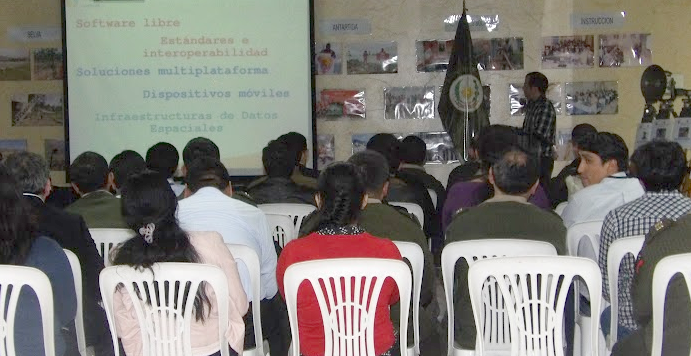
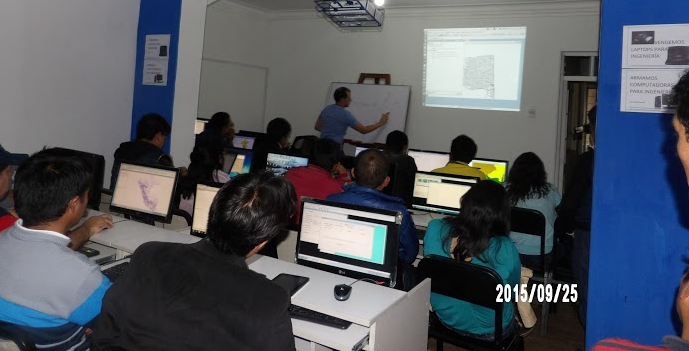
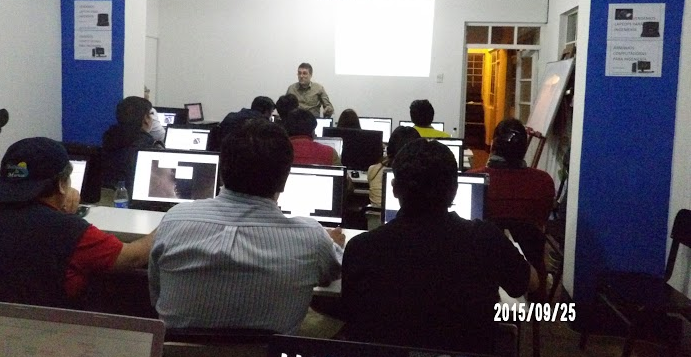
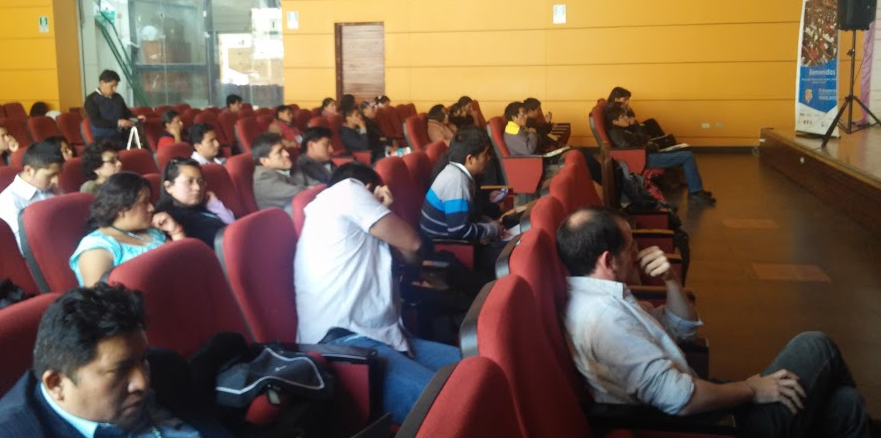
Os dejo con algunas imágenes del evento (ponencias, talleres de usuario y desarrollo, y ponentes destacados).

Peru_gvsig_1 Peru_gvsig_2 Peru_gvsig_3 Peru_gvsig_4 Peru_gvsig_5

Posted in events, spanish | Tagged , | 1 Comment

Automatizar la generación de informes en gvSIG mediante Scripting

La realización de informes puede ser una tarea tediosa y repetitiva, la cual puede ser automatizada. Después de aparecer varias preguntas relacionadas con este tema en la Lista de Usuarios y visto que podía ser de utilidad para la comunidad, hemos desarrollado un script en el que mostraremos un camino para realizar esta automatización.

En este caso vamos a utilizar la librería jOpenDocument, una librería que nos permitirá editar ficheros de texto (odt)  y hojas de cálculo (ods) de LibreOffice desde nuestro código.

Vamos a utilizar una plantilla y un script ya preparados para mostrar lo que sería el objetivo final de esta automatización. En este ejemplo tenemos un script que saca información de las parcelas que tengamos seleccionadas en una capa determinada. Para ello, accede a la información de varios campos de la entidad, y saca dos imágenes de nuestra Vista, una de la capa completa y otra sobre la entidad seleccionada. La escala que se aplicará a la imagen centrada sobre la entidad será la escala que tengamos en ese momento sobre la Vista.

El resultado que buscamos es este:

2015-09-28 12_05_27-Informess

Para realizar la prueba, he preparado un fichero .zip que contiene todo lo necesario. Podéis descomprimir este fichero quedándose así en C:\gvsig_informes\. El script está preparado para esta ruta, si es otra, deberéis modificarlas al inicio del script.

Lo primero será instalar la librería jOpenDocument. En su web podéis encontrar documentación de ejemplos y su API. Para este ejemplo he utilizado jOpenDocument 1.3 que es la última versión estable. Lo podemos descargar, o copiar desde el zip que os habéis descargado. Es un fichero .jar (el facilitado en el .zip sería jOpenDocument-1.3.jar), el cual deberemos copiar a la carpeta \gvSIG\extensiones\org.gvsig.scripting.app.extension\lib de la carpeta de instalación de gvSIG. Normalmente será:

  • Win: C:\Program Files (x86)\gvSIG desktop 2.2.0\gvSIG\extensiones\org.gvsig.scripting.app.extension\lib
  • Linux: \home\[usuario]\gvsig-desktop\gvSIG_2.2.0_final\gvSIG\extensiones\org.gvsig.scripting.app.extension\lib

Para el ejemplo, ya en gvSIG, debemos de tener abierta en una Vista la capa de manzanas_valencia.shp que adjunto en el zip, y tener esta capa seleccionada en la Tabla de Contenidos (ToC) de la Vista (debe de aparecer en negrita). Además tenemos que seleccionar las entidades de las cuales queremos generar el informe.

Una vez esto, solo quedaría cargar nuestro script en el Módulo de Scripting, modificar las cuatro rutas que aparecen en él en caso de que fuera necesario, y ejecutarlo:


from gvsig import *
import sys
from geom import *
from java.io import File
from org.jopendocument.dom.template import JavaScriptFileTemplate
from org.jdom import Namespace
from com.sun.jimi.core import Jimi
from org.gvsig.app import ApplicationLocator
import time

def main(*args):
    #Input
    pathTemplate = "C:\\gvsig_informes\\plantilla_informe_test2.odt"

    #Output
    # Utilizar este formato con una unica barra
    pathOutputFile = r"C:/gvsig_informes/resultado/test_parcela%02d"
    pathEnvelope = r"C:/gvsig_informes/resultado/envelope.png"
    pathImageOut = r"C:/gvsig_informes/resultado/img%02d.png"
    
    #Inicio
    print "Informe parcelario"
    application = ApplicationLocator.getManager()
    layer = currentLayer()
    docvista = currentView()
    docwin = application.getDocumentWindow(docvista())
    
    #Get scale
    gsv = currentView().getMapContext().getScaleView()
    
    #Envelope global
    envelope = currentView().getMap().getLayers().getMapContext().getFullEnvelope()
    currentView().getMapContext().getViewPort().setEnvelope(envelope)
    time.sleep(2)
    img = docwin.getMapControl().getImage()
    Jimi.putImage(img,pathEnvelope)


    #Create images and odt
    n=0
    for f in layer.getSelection():
        print f.MASA, f.geometry()
        #Center view and set same scale
        geomf = f.geometry()
        centerView(geomf)
        currentView().getMapContext().setScaleView(gsv)
        time.sleep(2)
        #Imagen
        img = docwin.getMapControl().getImage()
        pathImage = pathImageOut % n
        Jimi.putImage(img,pathImage)

        # Create odt
        pathOutFile = pathOutputFile % n
        templateFile = pathTemplate #File(pathTemplate)
        outFile = File(pathOutFile)
        bcFile = pathImage
        template = JavaScriptFileTemplate(templateFile)

        values = f.getValues()
        template.setField("hoja", str(values['HOJA']))
        template.setField("area", str(values['AREA']))
        template.setField("coorx", f.COORX)
        template.setField("coory", f.COORY)
        ddoc = template.createDocument()
        ddoc.getDescendantByName("draw:frame","Imagen2").setAttribute("href", "file:///" + bcFile,Namespace.getNamespace("xlink", "http://www.w3.org/1999/xlink"))
        ddoc.getDescendantByName("draw:frame","Imagen1").setAttribute("href", "file:///" + pathEnvelope,Namespace.getNamespace("xlink", "http://www.w3.org/1999/xlink"))
        ddoc.saveAs(outFile)
        #template.saveAs(outFile)
        n += 1
        
def centerView(geomi):
        envelope = geomi.getEnvelope()
        currentView().getMapContext().getViewPort().setEnvelope(envelope)
        time.sleep(2)

Resumen de los pasos a seguir:

  • Descomprimir fichero del zip quedando el contenido en C:/gvsig_informes (en caso de que sea otra ruta se debe indicar en el script).
  • Copiar el fichero jOpenDocument-1.3.jar a la carpeta \gvSIG\extensiones\org.gvsig.scripting.app.extension\lib de la carpeta de instalación de gvSIG
  • Cargar capa manzanas_valencia.shp en gvSIG
  • Teniendo la capa activa en negrita en la Tabla de Contenido de la Vista
  • Seleccionar varias entidades de la capa
  • Ejecutar el script

Sin embargo, este script aún tiene un par de limitaciones:

  • Las imágenes en la plantilla solo pueden ser remplazadas, esto es, la imagen que cogemos en gvSIG tiene la forma del recuadro de la Vista, si es de diferente tamaño se deformará en la plantilla. Tiene solución si editamos la plantilla con imágenes adaptadas al tamaño que tengamos adecuado, o mediante programación se podrían hacer recortes en la imagen creada.
  • Las imágenes aparecen como enlaces relativos a ficheros de imágenes, por tanto, la imagen no queda realmente dentro de la plantilla, sino es un enlace a ella.
  • Si la plantilla contiene caracteres especiales como tildes me aparece error a la hora de crear el documento. No se seguro por qué aparece este error, tal vez un problema en la codificación o de la plantilla o de la librería.

Si el post resulta de interés para vosotros, publicaremos otros nuevos explicando los pasos seguidos en este para que comprendáis cómo poder modificarlo, y ejemplos de otros tipos como la edición de hojas de cálculo ods o mirar su exportación a PDF.

La librería jOpenDocument abre muchas posibilidades. Cualquier ayuda o aportación será bienvenida.

Espero que les sea de su interés.


Actualización para la versión gvSIG 2.3:

He realizado una actualización del script para la nueva versión de gvSIG. Adjunto el código abajo, pero también podéis descargos directamente el paquete de aquí e instalarlo desde el Administrador de Complementos. Después de instalarlo os aparecerá dentro de la carpeta Addons desde el Scripting Composer. El único requisito será tener asignada una carpeta output (se puede modificar), en este script aparece como “C:/gvsig_informes/resultados”. El jar y la plantilla lo coge de forma relativa, haciendo referencia a la propia carpeta del plugin.


from gvsig import *
import sys
import os
path_script = os.path.dirname(__file__)
use_jar(os.path.join(path_script, "jar", "jOpenDocument-1.3.jar"))
from gvsig import geom
from java.io import File
from org.jopendocument.dom.template import JavaScriptFileTemplate
from org.jdom import Namespace
from com.sun.jimi.core import Jimi
from org.gvsig.app import ApplicationLocator
import time
def main(*args):
#Input
print "Script generacion de informes"
path_script = os.path.dirname(__file__)
pathTemplate = os.path.join(path_script, "plantilla", "plantilla_informe_test2.odt")
#Output
# Utilizar este formato con una unica barra
path_output = os.path.join("C:/","gvsig_informes", "resultado")
if os.path.exists(path_output) == False:
raise Exception(OSError, "Path not found: " + path_output)
pathOutputFile = os.path.join(path_output, "test_parcela%02d")
pathEnvelope = os.path.join(path_output, "envelope.png")
pathImageOut = os.path.join(path_output, "img%02d.png")
print pathImageOut
print pathEnvelope
print pathOutputFile
#Inicio
print "Informe parcelario"
application = ApplicationLocator.getManager()
layer = currentLayer()
docvista = currentView()
if layer == None or docvista == None:
raise Exception(ValueError, 'Not layer selected')
return
docwin = application.getDocumentWindow(docvista())
#Get scale
gsv = currentView().getMapContext().getScaleView()
#Envelope global
envelope = currentView().getMap().getLayers().getMapContext().getFullEnvelope()
currentView().getMapContext().getViewPort().setEnvelope(envelope)
time.sleep(2)
img = docwin.getMapControl().getImage()
Jimi.putImage(img,pathEnvelope)
#Create images and odt
n=0
for f in layer.getSelection():
print f.MASA, f.geometry()
#Center view and set same scale
geomf = f.geometry()
currentView().centerView(geomf.getEnvelope())
currentView().getMapContext().setScaleView(gsv)
time.sleep(4)
#Imagen
img = docwin.getMapControl().getImage()
pathImage = pathImageOut % n
Jimi.putImage(img,pathImage)
# Create odt
pathOutFile = pathOutputFile % n
templateFile = pathTemplate #File(pathTemplate)
outFile = File(pathOutFile)
bcFile = pathImage
template = JavaScriptFileTemplate(templateFile)
values = f.getValues()
template.setField("hoja", str(values['HOJA']))
template.setField("area", str(values['AREA']))
template.setField("coorx", f.COORX)
template.setField("coory", f.COORY)
ddoc = template.createDocument()
pathGeometry = ("file:///" + bcFile).replace('\\','/')
pathEnvelopeForHref = ("file:///" +pathEnvelope).replace('\\','/')
ddoc.getDescendantByName("draw:frame","Imagen2").setAttribute("href", pathGeometry,Namespace.getNamespace("xlink", "http://www.w3.org/1999/xlink"))
ddoc.getDescendantByName("draw:frame","Imagen1").setAttribute("href", pathEnvelopeForHref,Namespace.getNamespace("xlink", "http://www.w3.org/1999/xlink"))
ddoc.saveAs(outFile)
#template.saveAs(outFile)
n += 1
def use_jar(fname, root=__file__, isglobal=False):
from org.gvsig.scripting import ScriptingLocator
from java.io import File
import sys
import os
if isinstance(fname,File):
f = fname
fname = f.getPath()
else:
f = File(fname)
if not f.isAbsolute() :
rf = File(root)
if rf.isFile() :
rf = rf.getParentFile()
f = File( rf,fname)
fname = f.getCanonicalPath()
use_libs(fname,isglobal=isglobal)

view raw

informe_odt.py

hosted with ❤ by GitHub

Posted in development, gvSIG Desktop, scripting, spanish | Tagged | 24 Comments

It’s possible. It’s real.

Close your eyes. Dream. You are free to dream what you wish. To be the owner of your destiny. Dream that the speculation is dissipated to give way to collaboration. Dream that collective desires replace the egocentric individualism. Dream that cronyism disappear; that technological ignorance that excludes in an unfair and arbitrary way the Free Software to benefit Proprietary Software disappears, and especially when this decision follows the High Economic Value – Transnational pattern.

Follow with your eyes closed. Yes, it’s possible. We can change things, we can build a new business ethics, we can change the reality. Imagine a science in the service of humanity. An economy that meets efficiency and justice patterns. A policy that allows us to advance in levels of democracy and solidarity.

Open your eyes now. Not only it is possible, it is real. Change your dreams into reality. It depends on all of us.

It is possible, it is real. Hold together the #11gvSIG like always, a space for exchange of ideas and experiences where economics, science and politics shake hand, because remember, gvSIG is not just science.

Inicio_web_11as_Jornadas_Int_gvSIG_en

Posted in english, events, opinion | Leave a comment

Es posible, es real

Cierra los ojos. Sueña. Eres libre para soñar aquello que desees. Para ser el dueño de tu destino. Sueña que se desvanece la especulación para dar paso a la colaboración. Sueña que los anhelos colectivos sustituyen al individualismo egocéntrico. Sueña que desaparecen los amiguismos; que desaparece esa ignorancia tecnológica que excluye de manera injusta y arbitraria al Software Libre en beneficio del Software Privativo, y sobre todo, cuando esta decisión responde al patrón Alto Valor Económico – Transnacional.

Sigue con los ojos cerrados. Sí, es posible. Podemos cambiar las cosas, podemos construir una nueva ética de negocio, podemos transformar la realidad. Imagina una Ciencia al servicio de la humanidad. Una Economía que responda a patrones de eficiencia y de justicia. Una Política que nos permita avanzar en cotas de democracia y solidaridad.

Abre ahora los ojos. No solo es posible, es real. Transforma tus sueños en realidad. Depende de todos nosotros.

Es posible, Es real. Celebremos juntos las #11gvSIG como siempre, un espacio de intercambio de ideas y experiencias donde Economía, Ciencia y Política se dan la mano, porque recuerda, gvSIG no es sólo ciencia.

Inicio_web_11as_Jornadas_Int_gvSIG_es

Posted in events, opinion, spanish | Leave a comment

Create your own gvSIG (A new plugin!!)

Would you like to create your own customized distributions with gvSIG? Do you think that the gvSIG distribution should include symbol libraries by default or pre-installed additional functionalities? Do you need an adapted gvSIG in your organization?

Now we present a new plugin for gvSIG that solves those questions. Like any new plugin, the idea is to be tested by you and start using it from now.

We could say that this plugin “is not for all users”, but it covers a need that many organizations have: to have a customization of gvSIG with adapted features, like a default CRS at the installation, different than EPSG 4326, having it in a particular language, containing a series of OGC services used by the organization, including certain plugins, having concrete symbol libraries, etc.

This plugin allows that options and more; with this plugin you will also be able to customize features of gvSIG, like the name of the distribution or the splash that appears when you launch the application. And best of all, without having to develop any line of code and maintaining full compatibility with the official versions.

The first thing you should know is that this plugin is available for Linux gvSIG users. The add-on will not work from gvSIG in Windows, at least at this moment. That’s for sure, from your gvSIG distribution in Linux you can generate any current distribution: gvSIG for Linux 64-bit, for 32-bit Linux or for Windows.

Let’s look at 3 videos about how to work with this plugin.

At the first video we can see how to install it … nothing new … through the add-ons manager. It’s important to look for it at the “Testing gvSIG repository” because it is a complement in testing phase. At this repository we will look for the “Customize” plugin in its latest version (1.2.2-12) and we will mark it to install. Once installed, we have to restart gvSIG.

In this second video we can see how to configure and create the new distribution. Although it may seem complex … it is really quite simple, and you will see that in a few minutes you can create a customized gvSIG without difficulty.

In the “Tools” menu you will find a “Customize” submenu with 2 options, the second one allows you to edit the configuration file that will determine the characteristics of your “new gvSIG” …

… a new window with multiple tabs will be opened. Each tab allows you to configure a number of characteristics of gvSIG: the default language, the default CRS, the OGC services, …

In the OGC services you have to take into account that we can list the existing ones in our gvSIG, and delete them or add new services. In the video we have removed and added WMS and WMTS services (in the third video you will see the results).

We have also changed the default language, the CRS (EPSG 25830 instead of 4326), the application name(we renamed it as gvSIG Testing instead of gvSIG) and the splash that appears when launching the application.

You will see that there are other tabs that we have not modified (Proxy, WFS, WCS, and several ones related to scripting). The related to scripting ones will allow us to associate scripts to buttons, menus or the Table of Contents (TOC) contextual menu. Most of these tabs are under development and not necessarily working in this plugin version … but you can test it and tell us how it works.

Once the characteristics of the configuration file of our new gvSIG are indicated, we will select what add-ons or features we want to have by default. For that we will go to “Tools”, “Customize” and “Create distribution” menu. A window like the one in the video will appear, where we have to indicate (it is recommendable in this order):

  • Working folder: The folder where the installation file of your distribution will be saved.
  • Distribution id: ID Distribution name
  • Online installer: gvSIG online installer, which is used to create the distribution. This installer can be downloaded from all generated gvSIG versions and it contains a basic gvSIG without plugins. There are an online installer for Windows and Linux. For example, you can download gvSIG 2.2 online installer from here: http://downloads.gvsig.org/download/gvsig-desktop/dists/2.2.0/builds/2313/. The files named with “lin” are for Linux, and with “win” are for Windows.
  • Package set: we indicate the file that contains all the plugins or add-ons. In the same link indicated in the previous link we can download the plugins file for Linux (32 and 64bit) and Windows. They are the files with extension: gvspks.

Once the package file is indicated, gvSIG will start to read all the add-ons that are available and will list in the “Package set” tab. Here you can define which of these supplements you want to have by default.

In the example several additional symbol libraries and 3D functionality have been selected.

In this section we would also be able to add new plugins that were not in the “package set” file or remove any of the existing ones.

After the selection of plugins, we will click on “Create” button and the installation file will be created.

The video shows how gvSIG creates different files in the working folder. We only will take the installation file.

Now we have our customized gvSIG installation file.

In the third video we will see the results after installing it. In the first starting we see how the installation is completed, adding the selected symbols libraries. We check that gvSIG is installed with the selected characteristics: new splash, new title, CRS 25830, several WMTS and WMS by default and other pre-existing ones removed, new symbol libraries and the 3D plugin included by default.

Note: Changing the configuration file also makes some changes on the gvSIG that you have installed, so you can use this functionality to make certain customizations to your current gvSIG.

We are sure that this plugin will be very useful for organizations that use gvSIG. It shows, once again, how gvSIG continues an unstoppable progress of improvements in 2.x versions.

Posted in english, gvSIG Desktop, testing | Tagged , , | 2 Comments