gvSIG 2.0: Biblioteca de símbolos “Emergency”

Uno de los ámbitos en los que gvSIG se está utilizando cada vez más es en el de gestión de emergencias, tanto a nivel urbano como de catástrofes naturales. Sin duda, es más que significativo el aporte que el análisis espacial puede suponer para la gestión de emergencias y campos relacionados como el análisis delictual.

Orientada a estos usuarios hemos realizado una nueva biblioteca de símbolos. Como es habitual disponible desde el “Administrador de complementos”.

Para los símbolos puntuales (marcadores) hemos partido de un conjunto de símbolos denominado “EMS.The Emergency Mapping Symbology”, realizado por el Departamento de Recursos Naturales de Canadá  que tal y como indican es de libre uso. La forma de importarlos ha sido la habitual, descrita en este post.

Como en casos anteriores hemos utilizado pyRenamer -una herramienta de renombrado masivo de archivos-, ya que el nombre que gvSIG da a cada símbolo es el nombre del fichero. El objetivo del renombrado es facilitar la identificación de símbolos.EMS_01Estos símbolos están diseñados para utilizarse con un tamaño de 32 píxeles -con el objetivo de resaltar su importancia en el mapa- por lo que los hemos importado a ese tamaño. Reduciéndolo a tamaños inferiores también se visualizan correctamente.

Mediante GIMP hemos generado los distintos símbolos de selección. En este caso, al haber símbolos con tonalidades de amarillo, hemos decidido que los símbolos de selección se representen en escala de grises. Con la opción de GIMP Imagen/Modo/Escala de grises hemos convertido los símbolos a escala de grises, añadiendo “_sel” al nombre del fichero para que gvSIG lo interprete automáticamente como símbolo de selección.

Además de símbolos puntuales, queríamos que esta biblioteca contuviera un conjunto de símbolos de líneas y relleno útiles para los mapas de emergencias, delitos,etc.

Hemos generado tanto símbolos lineales:EMS_02Como símbolos de relleno, inspirados en el documento Biosecurity Emergency Management – Mapping Symbology:EMS_03Ya sólo nos queda crear el paquete tal y como explicamos en este post.

Este paquete lo tenéis disponible desde el administrador de complementos (seleccionando la URL http://downloads.gvsig.org/download/gvsig-desktop/ y buscando por “Tipos/symbols)o directamente descargándolo desde aquí.

Posted in gvSIG Desktop, spanish | Tagged | 3 Comments

gvSIG 2.0: Scripting, exploit your gvSIG (III): Generate a polygon from a course

Some time ago a friend of the project, Gustavo Agüero, published a post on his blog in which he explained how gvSIG generate a polygon from a bearing (or route or course). We found a very interesting exercise and with its help we implemented a script to undertake the same steps in gvSIG 2.0. The result is explained in this post.

We want to clarify that all the merit of this exercise is to Gustavo and the errors are because of our ignorance and for not properly follow his instructions. If you see some error, please, comment it and we will correct it 😉

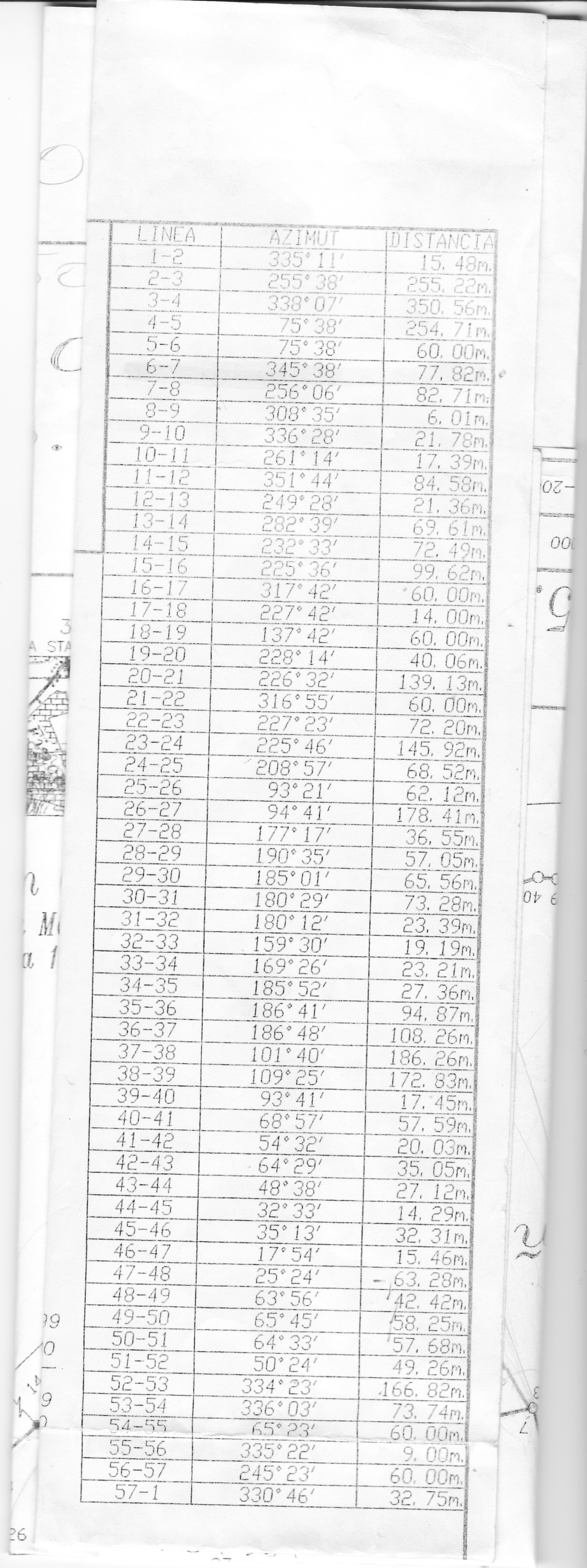
We start with a bearing or course that presents the data to the following structure LINE, AZIMUT, DISTANCE, being AZIMUT the angle direction in the sense counted clockwise from the geographic north (download rumbo.jpg).

The first thing to do is to save this file to a format that would be able to read from a script, this file we have created is a csv file that we named rumbo.csv (download rumbo.csv).

Once we have our file we have to think what we need to get its content into a shapefile. Obviously we’ll need a shapefile where to save the results and we’ll need to create the features to represent the data for including them on the shapefile. To create these features we’ll need to transform the polar coordinates (azimuth, distance) in rectangular coordinates (X, Y).

Some comments on that: Gustavo in his post recommend to make a representation of the data. This was very helpful to us.

In the script we will create a LINE shapefile and another one for POLYGONS. In the LINE type, we will keep heading data, data from coordinates transformation, and the resulting coordinates. In the POLYGONS shapefile will keep an identifier of the feature and a text field.

We start from a desktop gvSIG 2.0 (in my case I’ve used is build 2060 RC1) with the latest version of the scripting extension installed (currently the number 36).

Once we open the script editor (menu bar Tools / Scripting / Scripting Composer) we create a new script and start to write our script.

The first thing we’re going to do is to create the output layers using the function createShape from the gvsig module. The syntax of this function tells us that you need a data definition for the features, a route that is the place where to store the shapefile we are acreating, the projection of the shapefile, and the type of geometry that will contain. The definition of the data will be created using the function createSchema from the same gvsig module.

The source code, including comment would be:

import gvsig
import geom

def main():

'''
Create a polygon layer with the following data model:
    - 'ID', Integer
    - 'OBSERVACIONES', string
    - 'GEOMETRY', Geometry

Create a line layer with the following data model:
    - "ID", Integer
    - "LINEA", string
    - "GRADOS", long
    - "MINUTOS",long
    - "DISTANCIA", double
    - "RADIAN", double
    - "X", double
    - "Y", double
    - "GEOMETRY", Geometry            
'''

#Set up the projection, it is the same for both layers
CRS="EPSG:32617"

#Create the object that represent the data model for the polygonal shapefile
schema_poligonos = gvsig.createSchema() 

#Insert the filed from the data model
schema_poligonos.append('ID','INTEGER', size=7, default=0) 
schema_poligonos.append('OBSERVACIONES','STRING', size=200, default='Sin modificar') 
schema_poligonos.append('GEOMETRY', 'GEOMETRY')

#Set up the layer path. Remember changing it!!!
ruta='/tmp/rumbo-poligonos.shp'

#Create the shapefile
shape_poligonos = gvsig.createShape(
        schema_poligonos, 
        ruta,
        CRS=CRS,
        geometryType=geom.SURFACE
    )

#Create the line shapefile

#Create the object that represent the data model for the line shapefile
schema_lineas = gvsig.createSchema() 

#Insert the field from the data model
schema_lineas.append('ID','INTEGER', size=7, default=0) 
schema_lineas.append('LINEA','STRING',size=50,default='')
schema_lineas.append('GRADOS','LONG', size=7, default=0) 
schema_lineas.append('MINUTOS','LONG', size=7, default=0)
schema_lineas.append('SEGUNDOS','LONG', size=7, default=0) 
schema_lineas.append('DISTANCIA','DOUBLE', size=20, default=0.0, precision=6) 
schema_lineas.append('RADIAN','DOUBLE', size=20, default=0.0, precision=6) 
schema_lineas.append('X','DOUBLE', size=20, default=0.0, precision=6) 
schema_lineas.append('Y','DOUBLE', size=20, default=0.0, precision=6) 
schema_lineas.append('GEOMETRY', 'GEOMETRY')

#Set up the layer path. Remember changing it!!
ruta='/tmp/rumbo-lineas.shp'

#Create the shapefile
shape_line = gvsig.createShape(
    schema_lineas, 
    ruta,
    CRS=CRS,
    geometryType=geom.MULTILINE
)

Ok, we already have our output layers, now we are going to see how to get the data from csv file we created. Python has a module that allows csv csv file handling very comfortable ( python csv ). The source code for reading the csv file would be:

import csv
import os.path

#Set up the layer path for the CSV file. Remember changing it!!!
csv_file = '/tmp/rumbo.csv'

#Check that the file exists on the provided path
if not os.path.exists(csv_file):
  print "Error, el archivo no existe"
  return

#Open the file on read only mode
input = open(csv_file,'r')

#Create a reader object from the CSV module
reader = csv.reader(input)

#Read the file
for row in reader:
    #Print the line
    print ', '.join(row)

We already know how to create shapefiles and read csv files, the next step would be to create the features, so we must transform the polar coordinates to rectangular and it is at this point that for me things get a little dark so forgive the errors that you can find.
To make the coordinate transformation we’ll convert the decimal angle in radian angle. Gustavo in his post how to generate a polygonal (in Spanish) between the files to download you can find a PDF that provides an explanation of the calculations he made, if anybody has doubts I recommend to read it. I only want to clarify that we ‘ll use the python module python math to use math functions sine and cosine, needed to perform the transformation. In addition, our course uses relative coordinates, so we need a starting point and the code to calculate the new coordinates from the above ones. Our starting point is ( X= 361820.959424, Y = 1107908.627000). The source code would be:

"""
Convert decimal degrees, minutes, seconds to radian
"""
import math
#Define the “pi” value
PI = 3.1415926

x_ant = 361820.959424
y_ant = 1107908.627000

#Apply the equation and obtain the angle in radians
angulo = (degrees+(minutes/60.0)+(seconds/3600.0))*PI/180.0

#Convert the polar coordinates into rectangular ones

x_new = radio * math.sin(angulo)
y_new = radio * math.cos(angulo)

#Add relative coordinates values to get the next coordinate
x = x_new + x_ant
y = y_new + y_ant

The last piece of our puzzle is to learn how to create the features and their geometries. The layers that we created earlier shape_line and shape_polygons have a method called append that allows us to add the features to the layer. This method accepts a dictionary,
python dict that uses as key fields the ones we defined in the data structure of the layer (defined when we created it). The values are the ones that should have the feature. The geometries will be created using the geometric module geom from the scripting extension, in particular the createGeometry function, that needs the type of geometry to be created and the dimensions of the geometry. The code that we could use is:

geometry_multiline = geom.createGeometry(MULTILINE, D2)

values = dict()
values["ID"] = id #Calculated field for the registered number
values["LINEA"] = linea_id #First data of the course
values["GRADOS"] = grados #decimal degrees from the course
values["MINUTOS"] = minutos #decimal minutes from the course
values["SEGUNDOS"] = segundos #decimal seconds from the course
values["DISTANCIA"] = radio #Distance from the course
values["RADIAN"] = angulo #Radian angle calculated
values["X"] = x #X coordinate calculated
values["Y"] = y #Y coordinate calculated

shape_line.append(values)

At this point we have seen everything needed to get what we want from our original course, we only need to assemble the puzzle and the final result would be this:

Polígono

Polygon generated from the course

The final source code can be downloaded from here .

We hope you enjoy that exercise as much as I do.

See you next time!

Posted in english, gvSIG Desktop, scripting | Leave a comment

gvSIG 2.0: Biblioteca de símbolos “Forestry”

Uno de los ámbitos habituales de uso de los SIG es el forestal. Orientada a esos casos de uso hemos realizado una nueva biblioteca de símbolos. Y como es habitual disponible desde el “Administrador de complementos”.

Veamos como hemos realizado esta biblioteca, de modo que sirva como un nuevo ejemplo a los usuarios para crearse las suyas propias.

Para los símbolos puntuales (marcadores) hemos partido de dos fuentes distintas:

– Por un lado la colección de símbolos utilizada por el NPS (U.S. National Park Service). Una excelente colección de símbolos de dominio público.

– Por otro lado hemos utilizado la fuente Trees & Shrubs realizada por Jim Mossman, también de dominio público.

Para añadir los símbolos de NPS, hemos seguido lo indicado en este post. Para facilitar la identificación de símbolos, hemos utilizado una herramienta de renombrado masivo de archivos, ya que el nombre que gvSIG da a cada símbolo es el nombre del fichero; en nuestro caso hemos utilizado pyRenamer. Mediante Inkscape hemos generado los distintos símbolos de selección (coloreando de amarillo cada símbolo y añadiendo la terminación “_sel” al nombre del fichero).

Todo preparado para utilizar el importador de símbolos de gvSIG. Importamos los símbolos a “Forestry/NPS”. De forma automática se crea la nueva biblioteca con el conjunto de símbolos puntuales importados.foresty_point2

A partir de lo indicado en este otro post generamos los distintos ficheros SVG que representan un conjunto de árboles y arbustos. Utilizamos el importador de símbolos, almacenándolos en Forestry/Trees & Shrubs.Forestry_point1

Además de símbolos puntuales, queríamos que esta biblioteca contuviera un conjunto de símbolos de líneas y de relleno habituales en los mapas forestales.

Hemos generado tanto símbolos lineales:Forestry_lineaComo símbolos de relleno:Forestry_relleno


Ya sólo nos queda crear el paquete tal y como explicamos en este post.
Este paquete lo tenéis disponible desde el administrador de complementos (seleccionando la URL http://downloads.gvsig.org/download/gvsig-desktop/ y buscando por “Tipos/symbols)o directamente descargándoos el paquete desde aquí.


Posted in gvSIG Desktop, spanish | Tagged | 4 Comments

gvSIG 2.0: Symbols library “OSM”

Does anyone ignore what is OSM (OpenStreetMap)? If anyone was distracted, OpenStreetMap is the most important participative project to create free and editable maps  worldwide.

Following step by step what has been described in the posts “gvSIG 2.0: Create symbols libraries” we have created a new symbols library for our gvSIG form symbols related to OSM. Availability of this library has to be framed  in the idea that gvSIG users can use a wide and differentiated symbols library sets, that can be installed through the “Add-ons manager”.

See how this library has been realised in order to be a new example for users who wish to create an own library.

For point symbols (markers), a collection made by “SJJB Management” under Creative Commons (CC-0) licence and called “SJJB SVG Map Icons” has been used.  It is an excellent categorized symbols collection that can be downloaded in SVG format. Some of these icons come from the “US National Park Service Cartography” and other source of public domain that can be browsed on SJJB website.

As stated in previous posts, the name assigned by gvSIG to each symbol is the file name, thus we have used  a massive file renaming tool to perform this task; in our example we have used pyRenamer, available for Linux. Using Inkscape we have produced the different symbols when selected (colouring in yellow each symbol and adding the suffix “_sel” to file name).

Everything is ready now for the gvSIG symbols loader as already seen in a previous post and the new library is created in an automatic way and with the point symbols set loaded. In this case we have decided to create some subfolders to classify the sets of symbols.

OSM01

We want that this library have also lines and polygons symbols similar to the ones we can found in OSM. Even if no documentation on symbols composition is available, it is possible with any image editor, such GIMP, to identify the symbols RGB values and replicate them in gvSIG.

We have created also line symbols

OSM02

and polygon symbols

OSM03

Only the package creation is left and “how to do it”  is explained in this post.

This package is available in the add-ons managers (selecting  http://downloads.gvsig.org/download/gvsig-desktop/ and looking for it in “Categories/simbology”) or directly downloading from here.

Posted in english, gvSIG Desktop, training | 4 Comments

gvSIG 2.0: Crear bibliotecas de símbolos (III)

En anteriores posts de la serie de simbología hemos visto como crear una biblioteca de símbolos a partir de un conjunto de imágenes, realizando algunos ejemplos como el caso de las bibliotecas Google y OSM.

En algunos casos nos puede interesar realizar nuestra biblioteca de símbolos a partir de un fuente. Ya sea para tener como símbolos ciertas letras, números o caracteres especiales como en casos de fuentes que contienen símbolos gráficos.

Como ejemplo vamos a utilizar una fuente con símbolos de animales que hemos encontrado.

Una vez descargada e instalada en el sistema vamos a pasar a convertirla a imágenes. Para ello vamos a utilizar Inkscape, un software libre de edición vectorial al que ya hemos hecho referencia en alguna ocasión.

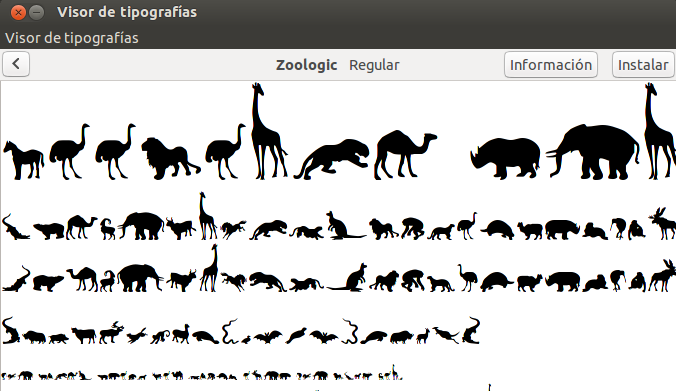
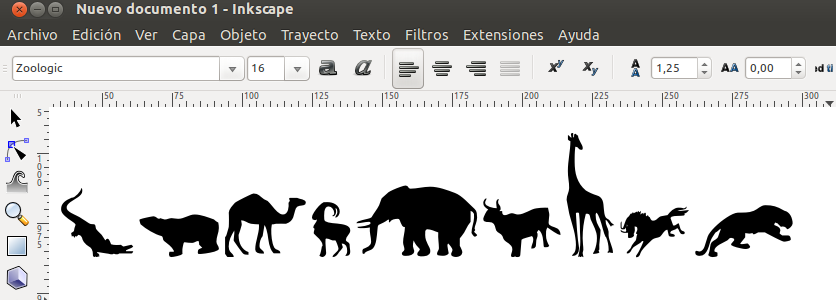
Para instalar una fuente sólo debemos abrirla con el visor de tipografías de nuestro sistema operativo y pulsar el botón “Instalar”.Zoo_01Una vez instalada ya nos aparece como parte de las fuentes disponibles en Inkscape. Añadimos texto y, por ejemplo, al escribir “ABCDEFGHI” nos aparece algo similar a:Zoo_02

Con dos sencillos pasos vamos a convertir esos caracteres en imágenes individuales y son:

  • Trayecto/Objeto a trayecto: convierte el carácter a imagen.
  • Objeto/Desagrupar: genera una imagen individual para cada carácter.

Ahora simplemente seleccionaremos cada uno de ellos y lo guardaremos como archivo individual, mediante la opción: “Archivo/Nuevo”, dando un tamaño al documento que sea similar al de nuestras imágenes. Cortamos y pegamos a este nuevo documento la imagen (por ejemplo la primera de ellas, el caimán) y con “Objeto/Alinear y distribuir” la centramos. La guardamos con un nombre reconocible (Caiman.svg). Hecho.

Para tener un símbolo distinto cuando esté seleccionado, lo pintamos de amarillo y lo “Guardamos como” con el mismo nombre acabado en “_sel”.

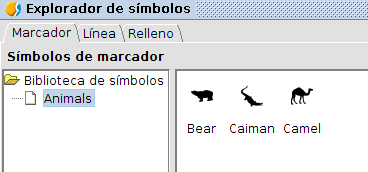
Ya podemos repetir esta acción con cuantos símbolos queramos importar. A partir de aquí ya sólo debemos usar el importador de símbolos de gvSIG y tendremos nuestra nueva biblioteca de símbolos disponible en gvSIG.zoo_04

Posted in gvSIG Desktop, spanish | Tagged | 6 Comments

gvSIG 2.0: “Google” symbols library

In the previous posts of the “gvSIG 2.0: Create symbol libraries” (1 and 2) series, we have seen how to create a new symbol library, through gvSIG, starting from a set of images and, then, create a deliverable package making possible to share the library with other users.

In gvSIG  Association we are working on a set of interesting libraries and we want to make them available for the whole users community. All of them have been created from symbols with public domain license.

Today we announce the availability of one of these libraries that we think is going to strongly support all those users producing maps and thematic cartography with gvSIG. It is a “G symbols” library providing users with a set of symbols similar to the ones that are used in Google maps applications.

We are going to see how this library has been created so that users can exploit it as example to create their own libraries.

For point symbols (markers) we have started from the symbols collection produced by  Nicolas Mollet, called “Map Icons Collection”. An excellent collection of categorized symbols, that can be as well downloaded in PNG format with different styles (classic, iOS, light,…). In this case we have selected the default style.g01

One of the most interesting aspect offered by “Map Icons Collection” is the possibility to define the colour of the downloaded symbols. We are going to use this option to later download, in yellow, the symbols (if you prefer that your symbols have a different colour, you just have to define it by this tool). Remember that if you want that a symbol changes when related geometry is selected, two different options can be used: define it manually-one by one- or perform the change automatically. When you load a set of symbols, for each loaded symbol, in presence of another symbol with the same name but with the suffix “_sel”, gvSIG will recognize it as the adopted symbol when selected.g02

In order not to be obliged to rename one by one all the downloaded symbols in yellow, we can use a files massive renaming tool (we have used pyRenamer, available for Linux and making possible to add the suffix “_sel” to the entire set of .png files in yellow). With a software as pyRenamer we can perform also action such as transform all the files name first letter in capital, delete strings that do not give useful information …and remember that the file name is the one adopted by the symbol in gvSIG.

Downloaded and categorized icons, after having been treated by pyRenamer, will look like as follow:g03

Now it is only needed to use the gvSIG symbols importer as we saw in a previous post and we will have our point symbols.

If we want to have also symbols for lines and polygons, similar to those that can be found in Google Maps, the RGB combination of such symbols can be found out through any image editor, such GIMP,  and used to replicate them in gvSIG.g04Now only the creation of the package has to be done according to the already described procedure.

This package is already available from the addons manager (by selecting the URL http://downloads.gvsig.org/download/gvsig-desktop/ and looking for “Categories/simbology”) or download the package directly from here (gvspkg).

NB: When using point symbols you have to remember that, by default, no “y” offset is applied thus, if you want that the symbol will be over the geometrical point, symbol properties have to be edited adding an “y” offset with a value equal to the half of symbol size (in our case, since the symbol has a default size of 32, an offset of 16 will be used).

Posted in english, gvSIG Desktop, training | 2 Comments

gvSIG 2.0: Mapas temáticos I

Derivado del proyecto gvSIG Batoví hay disponibles dos extensiones que añaden funcionalidad muy interesante para los usuarios de gvSIG 2.0.

Estas dos extensiones están disponibles a través del administrador de complementos y se denominan:

  • Thematic Maps generator
  • Thematic Maps viewer document

Mediante ambas vamos a poder trabajar con un nuevo tipo de documento, al que hemos denominado “Mapa temático”.

Los “mapas temáticos” son, realmente, un nuevo tipo de Vista en la que el usuario tiene opciones básicas de consulta. En su origen, el proyecto gvSIG Batoví, se buscaba que los alumnos de educación primaria y secundaria pudieran fácilmente compartir mapas temáticos, eliminando las herramientas complejas de la interfaz de gvSIG. Y, también, pueden ser una base perfecta para generar visores cartográficos.

Vamos a poder generar “mapas temáticos” a partir de cualquier “Vista” y convertir ese “mapa temático” en un paquete instalable desde cualquier gvSIG (con el administrador de complementos). Es decir, vamos a poder empaquetar una “Vista” con sus leyendas, capas, etiquetado…y distribuirla a otros usuarios de gvSIG.

Sin duda el mejor método para compartir información son las Infraestructuras de Datos Espaciales, pero a pequeña escala, para intercambio sencillo de información, vamos a encontrar muchas posibilidades con los “mapas temáticos”.

En primer lugar vamos a ver mediante el siguiente vídeo como instalar la aplicación:

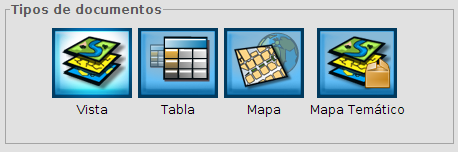
Si reiniciamos nuestro gvSIG veremos que ya nos aparece el nuevo tipo de documento.Tematico_01

En este primer post veremos como generar un “mapa temático” a partir de una “Vista”.

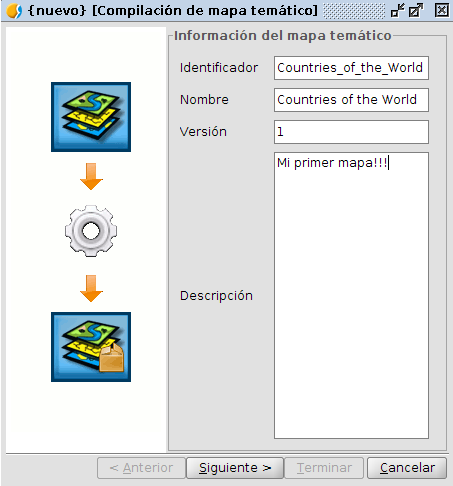
Vamos a crear nuestro primer mapa temático a partir de una “Vista” con una serie de capas cargadas y configuradas. Es tan sencillo como desde la propia “Vista” ir al menú “Mapa temático” y seleccionar “Crear a partir de Vista”. Nos aparecerá una ventana en la que indicaremos las características de nuestro mapa. Tematico_02

Pulsamos “Siguiente” y podemos validar que todo está correcto. Si no hemos rellenado alguno de los campos anteriores nos lanzará un aviso, aunque es a modo informativo y nos permite crear igualmente nuestro “mapa temático”.

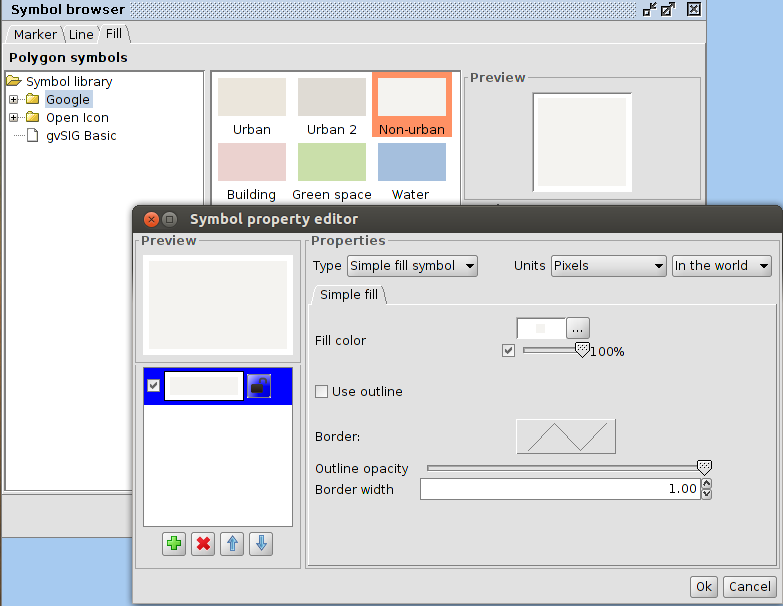
El campo descripción lo podemos utilizar también para indicar si hemos utilizado alguna biblioteca de símbolos particular, de cara a que los usuarios con los que lo vamos a compartir el mapa sepan que deben tener instalada dicha biblioteca de símbolos para visualizarlo correctamente. Tematico_03

Pulsamos en “Finalizar” y automáticamente gvSIG creará el nuevo documento: Tematico_04

En el siguiente post veremos como generar un paquete y compartir el “mapa temático” con otros usuarios.

Posted in gvSIG Desktop, spanish | Tagged | 7 Comments

La nouvelle version finale de gvSIG disponible : gvSIG 2.0

L’Association gvSIG annonce l’édition de gvSIG 2.0 version finale. La principale nouveauté de cette version est son architecture. La manière dont gvSIG gère les sources de données a été revue, avec l’objectif d’améliorer la fiabilité et la modularité, au bénéfice des utilisateurs et des programmeurs. Cela permet en plus une maintenance plus facile, et facilite l’évolution des technologies. Par conséquent, il y a eu un investissement réalisé sur le futur, avec le but de ne pas limiter les évolutions technologiques et d’établir les bases pour une évolution rapide.
Cependant, cette nouvelle version de gvSIG Desktop inclus une série de nouveaux éléments:

  • Nouvel installeur pour des installations typiques ou adaptées.
  • Manager d’Add-ons qui permet d’installer de nouvelles extensions et d’adapter gvSIG.
  • Quelques changements dans l’interface de gestion de données, tels que:
    • import/export de fichiers
    • opérations sur les tables
    • nouveau calque
  • Chargement de calques amélioré
  • WMTS (Web Map Tiled Service) accepté
  • Cache pour données Raster
  • Interface de géotraitement unifiée
  • Import de symboles, création de bibliothèques de symboles facilitée
  • Export de symboles, qui permettent de partager facilement des bibliothèques complètes de symboles.
  • Canevas de Scripting (langages: Jython, Groovy et Javascript).

Bien que ce soit la dernière version de gvSIG, il faut prendre en compte que c’est une version complètement nouvelle de gvSIG, dans laquelle certaines fonctions de gvSIG 1.12 ne sont pas incluses. Ces fonctionnalités seront incluses dans des mises à jour à venir, au rythme de leur migration à la nouvelle architecture. Les principales fonctionnalités par encore incluses sont les suivantes:

  • Géoréférencement
  • Légende par symboles proportionels, symboles gradués, densité de points, quantités par catégories et par expression.
  • Extensions: Analyses de réseau et 3D

De la même manière, il existe plusieurs projets basés sur cette nouvelle architecture, qui permettront d’ajouter de nouvelles fonctionnalités et améliorations directement dans gvSIG 2.0 dans les prochains mois.

Il doit également être pris en compte que le niveau de stabilité de cette version n’est pas aussi élevé que nous l’aurions souhaité, et le fait de la considérer comme une version finale est une manière de la proposer officiellement à l’usage de la communauté, et de prévoir de nouveaux développement sur celle-ci.

Nous vous encourageons donc à tester et à nous envouyer toute érreur trouvée, dans le but de les fixer dans les mises à jour à suivre. Les erreurs connues de la version 2.0 sont consultables à cette page.

Pour télécharger cette version, plusieurs miroirs seront disponibles dans quelques jours.

Nous espérons que vous apprécierez les nouvelles fonctions de cette version et que vous nous aiderez à l’améliorer.

Posted in community, french, gvSIG Desktop | Leave a comment

gvSIG 2.0: Scripting, exploit your gvSIG (II). Creating a buffer

In some previous posts we’ve seen how to create an easy script on gvSIG 2.0.

Now we show a video about how to implement a script to create a polygon shapefile that is obtained after applying a buffer to the geometries of a point layer. The buffer distance is obtained from a field of the point layer.

The steps to follow the script are:

  • We get the input layer.

  • We create the data definition (Schema) of the new layer.
  • We get the creation data of the new layer.
  • We create the new layer.
  • We scan the features of the input layer (points).
  • We create the new geometries.
  • We add the new feature to the new layer.
  • We finish the editing of the new layer.
  • We release the group of features of the input layer

The source code with comments is:

from gvsig import *

def main():
  #We get the active layer
  layer = currentLayer()

  #We create the data definition
  schema = createSchema(layer.getSchema())
  schema.modify()

  #We get the projection
  crs = currentProject().getProjectionCode()

  #We define the path where the new layer
  ruta = "/home/victor/carto/influencia.shp"

  #We create the layer
  newLayer = createShape(
    schema,
    ruta,
    CRS = crs,
    geometryType = SURFACE
  )

  #We get the features of the input layer
  features = layer.features()

  #We scan all the features 
  for feature in features:

    # We get the value of the buffer
    influencia = feature.get("Influencia")

    # We create the geometry coming of the buffer on the feature geometry
    geom = feature.geometry().buffer(influencia)

    # We get the values of the input feature attributes
    values = feature.getValues()

    # We add the new geometry in the new layer
    values["GEOMETRY"] = geom
    newLayer.append(values)

  # We finish the editing of the new layer saving changes
  newLayer.commit()

  # We release the group of features of the input layer
  features.dispose()

You have to take into account that it’s necessary to use gvSIG 2.0 Final version and the Scripting Framework extension to work without problems. Although the view must have an active layer and this layer has to have a double type field called Influencia. And better, you can modify the script to adapt it to your data.

We hope you enjoyed it.


Posted in english, gvSIG Desktop, scripting | Leave a comment

OGC ¿OSRI Geospatial Consortium?

Seguramente la mayoría de ustedes estará enterada de la propuesta por parte de ESRI para que su API de Geoservicios REST pase a ser un estándar OGC.

Aquí un documento  promovido por Cameron Shorter  donde argumenta el desacuerdo con esta propuesta y que va recibiendo adhesiones.

Esta situación ha abierto interesantes debates en diferentes listas, como por ejemplo en varios hilos de una lista de OSGEO  y en la lista SIG de RedIris.

En el documento citado y en los debates de las listas se verán diversos argumentos en contra y a favor. Preocupaciones técnicas y comerciales del porqué un ESRI estándar pasa o no a ser un OGC estándar. Que si ya solapa con otros estándares y lo que habría que hacer es evolucionar los ya existentes para paliar sus deficiencias. Que si dónde vamos con un estándar cuya implementación de referencia viene soportada tan sólo por un software privativo. Que si realmente no es REST y son muchas sus deficiencias técnicas…

Por otra parte, ¿Que por qué ESRI no va a poder proponer que su implementación sea estándar? Que para eso paga, contribuye, financia OGC y está en su derecho. Esto recuerda eso de: ‘oiga, quien paga manda’. O que si ESRI realmente promueve los estándares porque está en OGC. Vamos, algo como que ESRI está en OGC para promover los estándares…aunque eso pudiera ir contra su modelo de negocio.

Pero por encima de todos estos argumentos, recordamos una presentación que ya tuvo lugar en el 2009 en la sesión 5 de las 5as jornadas internacionales de gvSIG en Valencia (España)  donde hablando de los estándares, llevaba como título ¿Qué pasa cuando pones al zorro a cuidar del gallinero?

La tesis principal de esta ponencia es que una cosa es lo que venden las grandes empresas y otra la que practican.

ESRI nos vende que apuesta por lo estándares y por la interoperabilidad y que por eso financia OGC o el FOSS4G. Pero cualquiera que sepa algo de que va esto, conoce que el principal modelo de negocio de ESRI, sea directamente o a través de sus múltiples filiales, es la especulación con el conocimiento, sea en venta de licencias de software o en dificultar el acceso a la información a través de sus ‘estándares’.

¿Qué podemos esperar entonces? Prácticas que en absoluto son exclusivas de ESRI. Igual podemos hablar de Autodesk y el DWG o de Bentley y el DGN v8. ¿Recuerdan como se comportó ESRI con su librería ArcSDE? Desde luego, una práctica que muestra realmente lo que le preocupa la compatibilidad.

Así que ahora, de las grandes compañías cuyo modelo de negocio es el privativo, nos vamos a creer que han entrado en una lógica racionalista y sostenible y van a dejar de hacer el FUD sobre el software libre por las puertas traseras del poder y van a apoyar los estándares. Que van a dedicar recursos a unas organizaciones como OGC, potenciando los estándares aunque vayan en contra de sus intereses comerciales.

Claro, siempre olvido lo que ya escribimos aquí en una ocasión en el 2010, y es que el Arcgis is Open .

Por último, sobre la carta promovida por Cameron, indistintamente de que pueda haber un debate enriquecedor sobre ciertos matices de la misma, quiero agradecerle esa iniciativa.

Posted in opinion, spanish | 5 Comments